
♪ Schedule
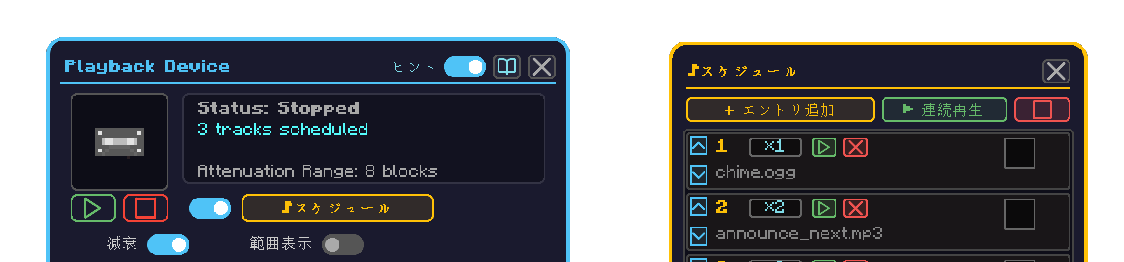
The editor for playing several media in order from a Playback Device. Open it with the device's ♪ Schedule button.
How to open
- Right-click the Playback Device to open it
- Turn the schedule toggle on — the media slot gets a ✕ and the ♪ button arms
- Click ♪ Schedule — the schedule opens beside the main screen
- Your inventory stays reachable while it is open, so you can drag media straight into the rows
Operation
| What you want to do | How |
|---|---|
| Add an entry | Click + Add Entry |
| Assign audio | Drag a recording medium from your inventory into the slot at the right of the row |
| Assign it quickly | Shift-click a recording medium — it lands in the first free row |
| Change the play count | Hover the count (×N) and use the mouse wheel |
| Reorder | The ▲ / ▼ at the left of the row |
| Preview one row | The row's ▶ |
| Delete an entry | The row's ✕ — the medium is handed back to you |
| Play everything in order | ▶ Play All |
| Stop | ■ |
While it plays
The row currently sounding is outlined, and the outline moves along as the sequence advances.
Limits
| Item | Value |
|---|---|
| Entries | 6 max |
| Play count | 1 to 10 |