
Line Symbols Tab
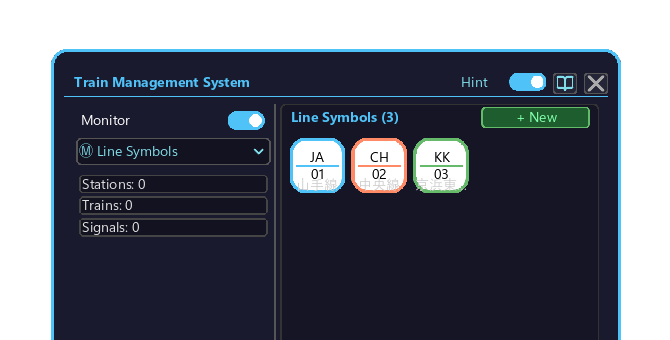
The Line Symbols tab of the Management Computer. Create, edit, and delete line symbols (e.g. JA, JB, M01).
How to open
- Place a Management Computer block and right-click it to open the screen.
- Click the top-left dropdown and choose "Ⓜ Line Symbols".
- When the symbols don't all fit, roll the mouse wheel over the list to scroll.
What is a Line Symbol?
An identifier assigned to each station and train. Example: Yamanote Line = JY, Chuo Line = JC. Assigned to stations in the Stations Tab → displayed on the Route Map and the Railway Management Block.
What is shown
| Column | Content |
|---|---|
| Symbol text | 2-3 character line abbreviation (e.g. JA) |
| Color | Background / text color |
| Shape | Circle / rounded square / hexagon / etc. |
| Stations using it | Number of stations this symbol is assigned to |
Controls
| Action | How | Result |
|---|---|---|
| Create new | Click the "+ New" button at the top right | The Symbol Editor opens so you can make a new symbol |
| Edit | (Left-)click a symbol tile in the list | Edit that symbol in the Symbol Editor |
| Delete | Right-click a symbol tile in the list | A delete confirmation appears (below) |
Symbol delete behaviour
Right-clicking a symbol tile shows a delete confirmation. Click "🗑 Delete" to confirm; just close it to keep the symbol.
Deleting an in-use symbol clears the symbol from every station it was assigned to. Reassign from the Stations Tab.
The memory card must stay inserted
Since 1.0.10 the line symbols you define here live on the memory card in the management computer's card slot, and stations only show a symbol while that card is inserted.
- Breaking the computer no longer loses the symbols — place a new one and insert the same card.
- Pulling the card out takes the symbols off the station monitors until it is put back.
- See Memory Card.