
Train Preset Save
Train Preset Tool

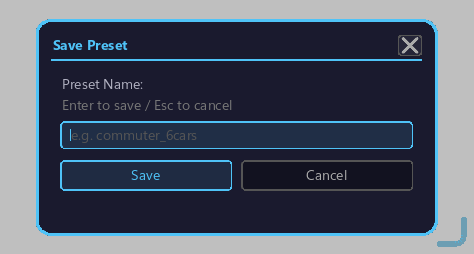
The save screen of the Train Preset Tool, which serializes a train structure to JSON and stores it as a template. Select a range with the tool, then perform the save action to open this screen.
Features
- Scans all blocks + carriage entities within the range
- Saves as JSON to internal storage (file:
<gamedir>/trainsystemutilities/presets/<author>/<name>.json) - Can be moved to another world / another player
- Can also be shared online via Preset Place
Holding / Modes
The Train Preset Tool has 3 modes. Right after you switch to it, it is in GUI mode. Saving uses Selection mode.
- GUI mode (initial state): Right-click opens the Preset Browse / Place screen.
- Selection mode: The mode for specifying the two points (Pos1 / Pos2) that enclose the train. After deciding the range, right-clicking opens this save screen.
- Place mode: The mode for placing a saved preset into the world (see Preset Browse / Place).
Switch modes with Alt + mouse wheel. While held, the current mode is shown above the hotbar.
Opening / Usage
- Hold the Train Preset Tool.
- Switch to Selection mode with Alt + wheel.
- To enclose the train you want to save, right-click the position of the first corner (default: right mouse button) (
Pos1is recorded). - Right-click the opposite corner (
Pos2is recorded and the range is finalized). To record a precise spot, aim at the block and right-click. - With both points set, right-click once more to open the save screen.
- Type a preset name with the keyboard into the input field on the screen and press Enter to save (left-clicking the save button also saves). You cannot save when the name is empty.
- Shift + right-click clears the recorded range (Pos1 / Pos2). Use it when you want to start over.
Limits
- Max volume: 256×256×256 blocks (16.7M block cap)
- Large ranges are rejected early to prevent server freeze
- Blocks in unloaded chunks are excluded