
Electronic Timetable Tab
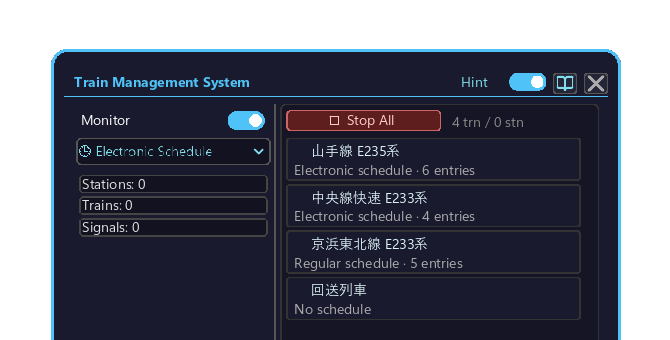
The Electronic Timetable tab of the Management Computer. Manages a train's Create schedule electronically — you can edit it, export it to a physical item, and share it with other trains.
How to open
- Place the Management Computer block and right-click it to open the screen.
- Click the top-left dropdown and choose "🕒 Electronic Timetable".
- When there are too many trains to fit the list, turn the mouse wheel over the list to scroll.
The three timetable states
Each train tile shows the state of its timetable.
| State | Meaning |
|---|---|
| Electronic timetable | Set and managed on this Management Computer. Can be edited / exported / shared |
| Regular timetable | A physical schedule item handed directly to the conductor. Cannot be edited from the computer |
| None | No timetable set |
Detail view
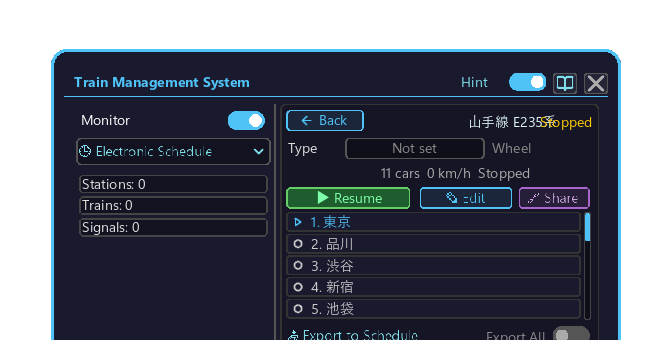
Click a train tile in the list to open its details.
| Element | Action | Content |
|---|---|---|
| Resume / Stop | Click to toggle | A toggle button showing "Resume" while stopped and "Stop" while running |
| Edit | Click | Edit the electronic timetable (enabled when the requirements are met; below) |
| 🔗 Share | Click | Share the timetable with other trains (Share) |
| ◀ Back | Click | Close the details and return to the list |
| Entries | Scroll with the mouse wheel over the list | List of schedule entries |
Edit requirements
For the Edit button to be enabled, all of the following are required:
- The train is stopped
- It is an electronic timetable (regular timetables cannot be edited)
- A conductor (a mob or a Blaze Burner) is aboard
Right-clicking the conductor
For an electronic-timetable train, right-clicking the conductor toggles resume / stop and the schedule item cannot be taken out (it is set electronically). Regular timetables still let you take the item out by right-clicking as before.
Schedule editor popup
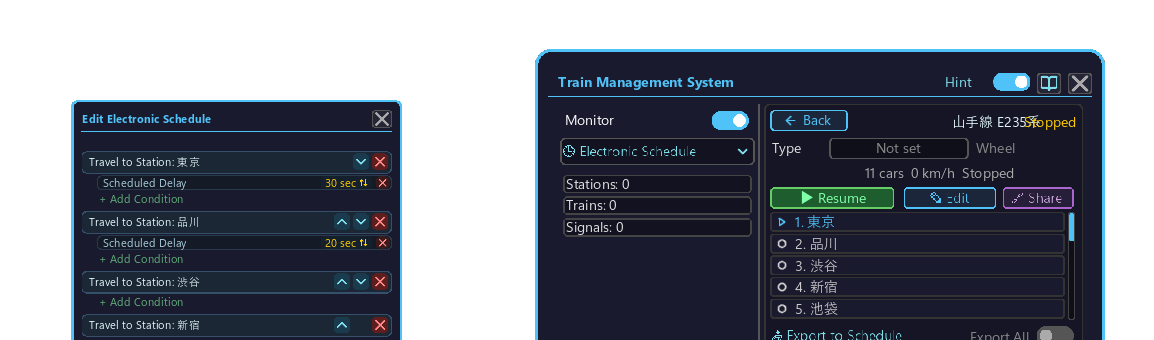
Clicking the "✎ Edit" button in the details opens an edit popup to the left of the screen (or to the right if it does not fit). It handles all Create schedule instructions and conditions under their official Create names.
Entry operations
- Add an entry: click the "Add Action" button at the bottom of the popup → click to choose from the list that appears (🚉 Station / 📦 Deliver / 📥 Collect / 📝 Rename / 🔧 Speed Limit).
- Reorder: click the up arrow / down arrow on each entry to move it one slot up / down.
- Delete: click the ✕ on the entry.
- Toggle cyclic / one-way: click the "↻ Cyclic" / "→ One-Way" toggle at the top of the editor (cyclic loops back to the start after reaching the end).
- Confirm / cancel: click "✓ Apply" to save at the bottom, click "× Cancel" to discard.
Wait conditions per entry
Each entry can be assigned one or more wait conditions.
- Add a condition: click the add-condition button on the entry → click to choose from the list (⏱ Wait / ⌚ Time / 👤 Player Count / 📦 Item / 💧 Fluid / 🚃 Coupling, etc.).
- Change a condition's number: hover the cursor over the value such as wait seconds and turn the mouse wheel (up increases / down decreases).
- Delete a condition: click the ✕ on the condition.
Examples:
| Condition | Behavior |
|---|---|
⏱ Wait | Wait for a set time |
👤 Player Count | Wait until passengers board |
📦 Item / 💧 Fluid | Wait until cargo is loaded |
🚃 Coupling | Wait for coupling (Coupling / Decoupling) |
Adding an entry (choosing a station)
When you choose 🚉 Station / 📦 Deliver / 📥 Collect under "Add Action", a station-pick list opens next. Click the destination station to add that entry. When there are many stations, scroll with the mouse wheel over the list.
Export to a timetable
An electronic timetable can be written out to a physical "Schedule" item.
- Drag an empty schedule item into the input slot → the arrow-shaped bar progresses → a written item appears in the output slot, so take it out.
- Click the "Export All" toggle to turn it ON to export as many copies as were placed in the input (OFF exports just one).
Share with other trains
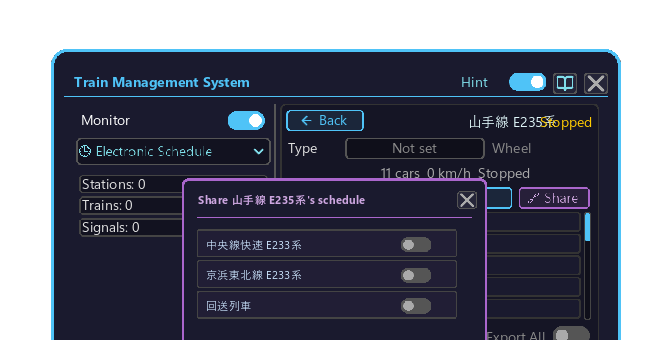
An electronic timetable can be shared with other trains on the same network.
- Click the "🔗 Share" button in the details → a train list opens → click the toggle to turn it ON (green) on the row of the target train, making it a share target. When there are many trains, scroll with the mouse wheel over the list.
- The shared train becomes read-only and shows "Sharing timetable with (train name)".
- Editing the source automatically propagates to the shared trains' timetables.