
Color Settings
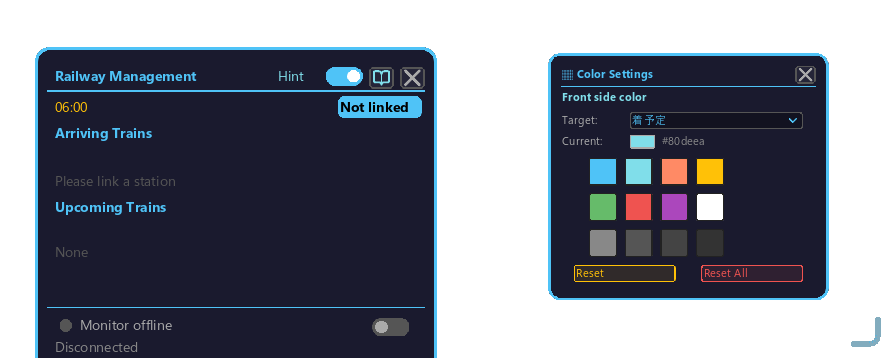
The popup opened by the "Color" button on the Railway Management Block. The color of each of 10 text elements can be changed.
How to open
- Right-click the Railway Management Block to open its GUI.
- Click the "▒ Color" button on the monitor row, and this color settings popup appears on the right side of the dialog.
- Click the "▒ Color" button again to close it.
Editable targets (10)
| key | Display element |
|---|---|
arrTime | Arrival time |
depTime | Departure time |
stopInfo | Stop info |
routeType | Train type |
stopSec | Stop seconds |
trainName | Train name |
nextName | Next train name |
sectionTitle | Section header |
countdown | Countdown |
trackNumber | Track number |
Preset colors (12)
Apply a color with one click from the preset grid at the bottom of the popup:
#4fc3f7 (cyan)   #80deea (light cyan)  #ff8a65 (orange)  #ffc107 (yellow)
#66bb6a (green)  #ef5350 (red)         #ab47bc (purple)  #ffffff (white)
#888888 (gray)   #555555 (dim)         #444444 (darker)  #333333 (darkest)
Operation (what to click)
- Click the dropdown (with ▾) at the top of the popup → from the list, click the edit target whose color you want to change (arrival time / train name / track number, etc. — the 10 above).
- Click a preset color at the bottom of the popup, and that color is applied immediately to the selected target.
- To revert, click the "Reset One" button (resets only the selected target) or the "Reset All" button (resets all 10).
Per-face management
Click the "↻ Front/Back Toggle" button to switch between front / back, and you can set a different color set for each face. It also supports batch apply (see Monitor Settings).