
Poster Management Block
An advertisement board that displays PNG / JPG images as a slideshow. Place it at a station or concourse to display guidance posters, operation info, ads, and more.
How to open
- Place the Poster Management Block (it can be placed like a normal block, on the ground, a wall, etc.).
- Right-click the placed block to open the GUI.
- The first person to right-click it becomes the owner. When the face icon in the lower right is set to Private, no one but the owner can open it (Access Mode).
Operation (where to click / scroll)
All operations inside the GUI are done with the mouse.
| What you want to do | How |
|---|---|
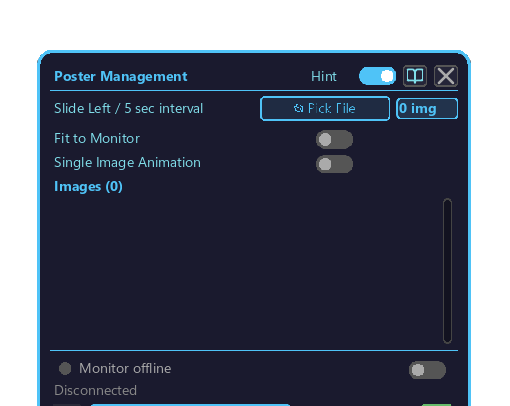
| Add an image | Click the "📂 Choose File" button → pick a PNG / JPG in the OS file picker |
| Turn an image's display ON / OFF | Click that image's row in the list (the part other than the buttons at the right end of the row) |
| Change the display order of images | Click the up / down buttons at the right end of each row |
| Delete an image | Click the delete button at the right end of each row |
| Scroll the list | Mouse wheel over the image list (when there are 6 or more) |
| Fit to monitor (FIT/COVER) | Click the "Fit to monitor" toggle |
| Animate with a single image | Click the "Animate single only" toggle |
| Turn monitor linking ON / OFF | Click the monitor toggle |
| Open animation settings | Click the "♫ Animation" button → Animation Settings popup |
| Switch Private / Public | Click the face icon in the lower right |
What you can do
| Feature | Summary |
|---|---|
| Image registration | Fetch PNG / JPG images from a URL and store them internally |
| Ordering | Reorder via swap in the list (with animation) |
| Auto / single switch | Slideshow or single-image display |
| FIT / COVER | How the image fits within the frame (cropped vs letterboxed) |
| Monitor link | Display on linked monitors via the Monitor Link Card |
| Animation settings | Slide direction / speed / effect (details: Animation) |
GUI primary elements
| Element | Function |
|---|---|
Fit to monitor toggle | ON = FIT, OFF = COVER |
Animate single only toggle | ON = single, OFF = slideshow |
| Registered image list | Scroll up/down; per-row display ON/OFF + swap operations |
| Monitor offline toggle | Enable monitor linking |
Animation button | Animation settings in a popup (animation) |
| Inventory | Player inventory |
| owner-face icon | Private / Public toggle |
Image registration
When you press the "📂 Choose File" button, your computer's file picker dialog opens. Pick one PNG / JPG / JPEG image here, and that image is registered to this block and added to the list. Registered images are stored on the server side and are also shown as a slideshow on monitors.
Monitor linking
[Poster Management Block] ─── [Monitor Link Card] ─── [Monitor Block × N]- Link the Poster Management Block with a memory-card, etc.
- The slideshow plays on the linked monitors
- One poster block → multiple monitors OK
- Details: Monitor Link Card