
Stations Tab
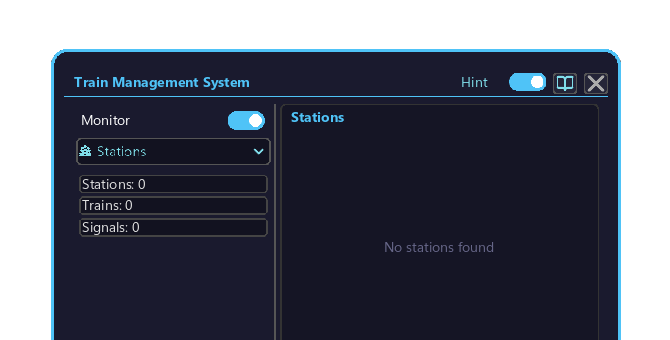
The Stations tab of the Management Computer. List of all stations, station group management, and line symbol assignment.
How to open
- Place the Management Computer block and right-click it to open the screen.
- Click the top-left dropdown and choose "🏯 Stations".
- When there are too many stations to fit the list, turn the mouse wheel over the list to scroll.
Displayed content
| Column | Content |
|---|---|
| Station name | Create station name |
| Group | Owning station group (registered with Station Range Tool) |
| Line symbol | Assigned symbol (e.g. JA01) |
| Train detection | Most recent passing train |
Station group management
Lists the station groups created with the Station Range Tool, where you can:
- Check member stations
- Rename a group
- Delete a group
Station details and controls
- Select a station: click a station's row in the list to open its details (station name, position, owning group, door direction, etc.).
- Return to the list: click the "◀ Back" button in the details.
- Set the door opening side: click a direction button in the details (North / South / East / West / Auto / None) to choose.
Line symbol assignment (assign popup)
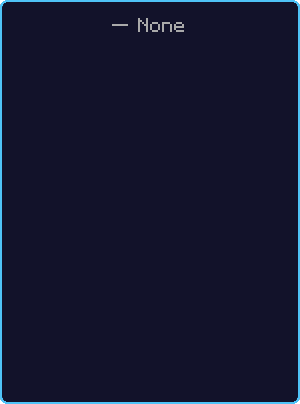
- Open the assign popup: click the assign button (+) on each station's row in the list to open a line symbol list just below that station.
- Assign a symbol: click the line symbol you want to assign from the list (choosing "None" clears the assignment).
- The symbols you can assign are created in advance in the Line Symbols Tab.
Line symbols
Symbols created in the Line Symbols Tab are assigned to stations here. Assigned symbols appear in the Railway Management Block header and on the Route Map.