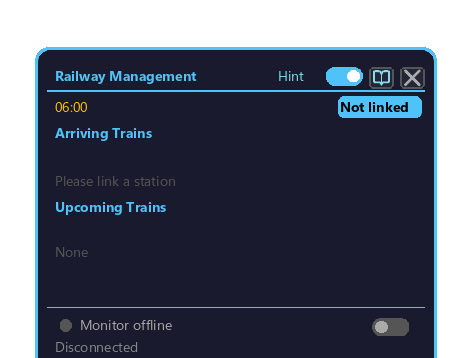
A display board block placed on a station platform. It auto-displays stopped / next trains and integrates with monitors, color settings, and announcements (SAS).
How to open
Place the Railway Management Block on a station platform. Just like Create's station block, you place it onto a track by right-clicking a track you have laid.
The first person to right-click it becomes the owner. When the face icon in the lower right is set to Private, no one but the owner can open it (Access Mode).
Operation (where to click / scroll)
All operations inside the GUI are done with the mouse (no keyboard).
What you want to do
How
Turn the monitor ON / OFF
Click the toggle on the monitor row
Open monitor settings
Click the "⚙ Settings" button on the monitor row → Monitor Settings popup
Open color settings
Click the "▒ Color" button on the monitor row → Color Settings popup
Open announcement / platform-door settings
Click the "Features ▼" button on the monitor row → from the list that appears, click "Announcement" or "Platform Door"
Advance the list of next trains
The page switches automatically at set intervals (no manual action needed)
Show hints
Click the "Hint" toggle in the upper right to turn it ON. In that state, hover the cursor over a button and press F1 to jump to that feature's wiki description (How to use F1)
Switch Private / Public
Click the face icon in the lower right
Overview
Feature
Summary
Arriving train display
Shows the stopped train on the top row (train name / cars / arrival time / departure time)
Next train display
Shows the trains arriving next on the bottom rows (multiple)