
Profile
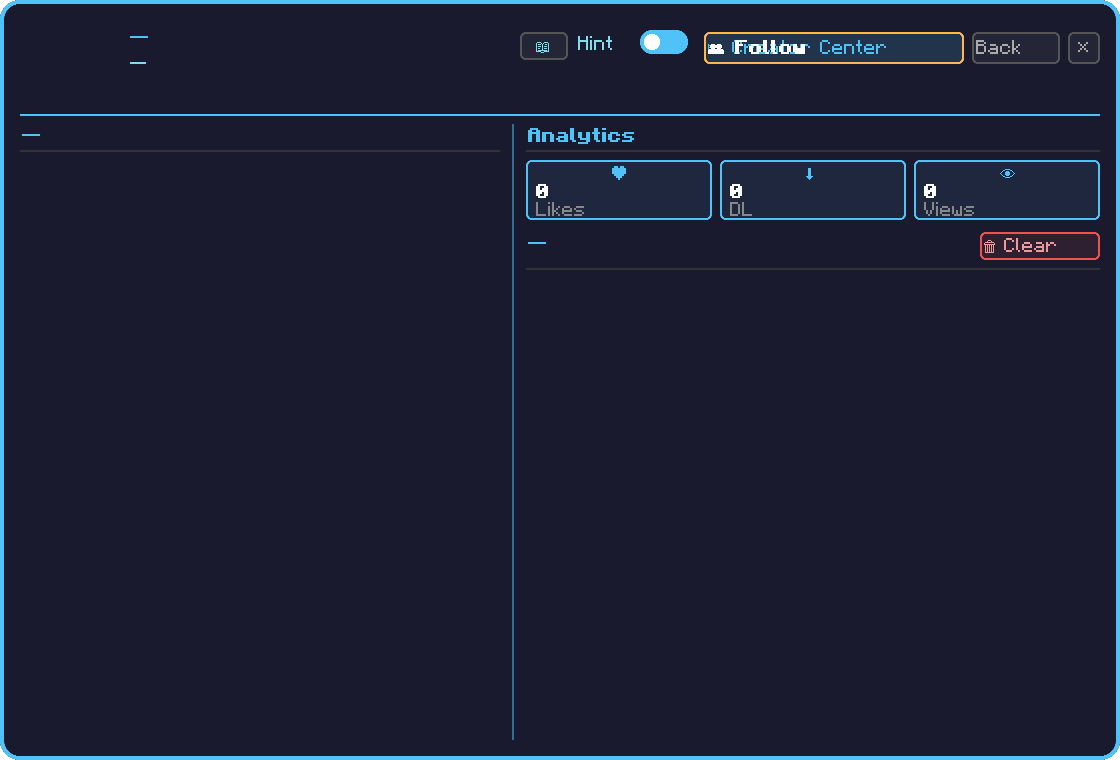
Per-user page. Two modes: your own page and other users' pages.
Opening
- Your own profile … Right-click the Train Preset Tool in GUI mode → set the mode to `Place` (public) and left-click your name/icon area at the top.
- Other users' profiles … On the Preset Detail page, left-click the uploader's name to open it.
The first time you open it, you may be asked to authenticate your Microsoft account. Follow the on-screen guidance.
Modes
What you can do differs depending on whether it is your own page or someone else's.
| Mode | Content |
|---|---|
| Own | Edit profile / change icon / view stats / go to Creator Center |
| Others | Browse public presets / follow |
Button operations
| Button | Display condition | Operation / Behavior |
|---|---|---|
| Follow | Others' page | Left-click to follow / unfollow (gray while following, orange when not following) |
| Creator Center | Own page | Left-click to open the Creator Center |
| Edit icon | Own and Official Accounts only | Left-click to open the icon editor |
| Preset tile | Both | Left-click to go to that preset's detail |
| × / Back | Both | Close / go back |
Profile icon
Supports custom icons in SVG format. Editing is done in the Profile Icon Editor (a dedicated popup, opened from the Edit icon button on your own page):
- Load an SVG file
- Adjust scale / offset
- Set background color / frame color
- Editable only by Official Accounts (the edit button is not shown to general users)
Stats display
Your own profile shows:
- Public preset count
- Total downloads
- Total likes
- Followers