
Management Computer Overview
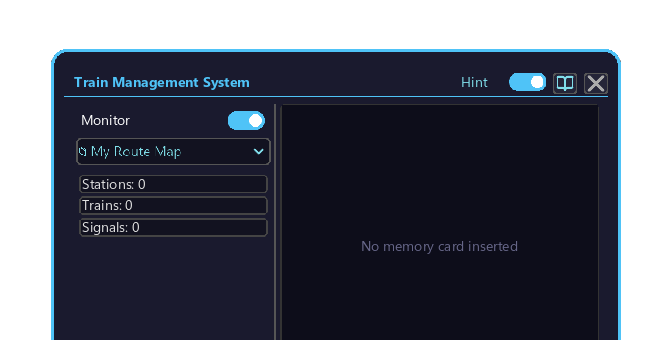
The central control GUI that oversees the entire railway network from a single block. It holds 6 management screens, switchable via tabs.
How to open
- Place the Management Computer block in the world.
- Right-click the block to open this screen.
- Once open, first click the dropdown at the top-left (default: "📁 My Route Map ▾"), then click the tab you want from the list that appears.
Basic controls
This screen (and TSU block GUIs in general) is operated by the following rules. Keep them in mind and you will not get lost on any tab.
- Switch tabs: click the top-left dropdown → click a tab from the list.
- Change a number: hover the cursor over the value and turn the mouse wheel (up increases / down decreases). There are no dedicated
+/-buttons. - Toggle ON / OFF: click the toggle switch (ON = green).
- Scroll a list: when there are too many items to fit, turn the mouse wheel over the list (a scrollbar appears on the right).
- Buttons: click to execute.
- Switch access mode: click the face icon at the bottom-right (below).
Tab list
| Tab | Content |
|---|---|
| Monitor | Custom layout editor / preview |
| Route Map | Map of all stations and tracks |
| Trains Tab | List and details of all trains (position / speed / electrification) |
| Schedule Tab | Schedule list + edit popup |
| Stations Tab | Station list + station group settings |
| Line Symbols Tab | Create / assign line symbols |
Main controls
Shared parts around the screen and how to use them.
| Element | Position | Action | Function |
|---|---|---|---|
| Tab dropdown | Top-left | Click to expand list → click a tab | Switch the active tab |
| Hints toggle | Top-right | Click to turn ON/OFF | When ON, enables hover descriptions + F1 jump |
| Wiki button | Top-right | Click | Opens this page (wiki) |
| owner-face (face icon) | Bottom-right | Click to switch | Private / public toggle (below) |
| 🎨 Color button | Bottom | Click | Opens the Color Settings popup |
| ▒ Layout button | Bottom | Click | Opens the Layout Editor |
| Inventory | Bottom | Click to move items | Player inventory (Container-type V3 screen) |
Access mode
Each click of the face icon at the bottom-right toggles between private and public.
| Mode | Appearance | Access |
|---|---|---|
| Public | Face with blue border | Anyone can edit |
| Private | Face with red border | Only the placer can edit |
The profile icon can be customized as SVG in Preset Place > Profile.
Related popups
| Popup | Use |
|---|---|
| Layout Editor | Free editing of the monitor layout |
| Color Settings | Colors of monitor elements (10 types) |
| Color Picker | HSV custom colors |
| Line Symbol Editor | Create SVG icons |
| Electrification Detail | Train FE / catenary status |