
Monitor Display
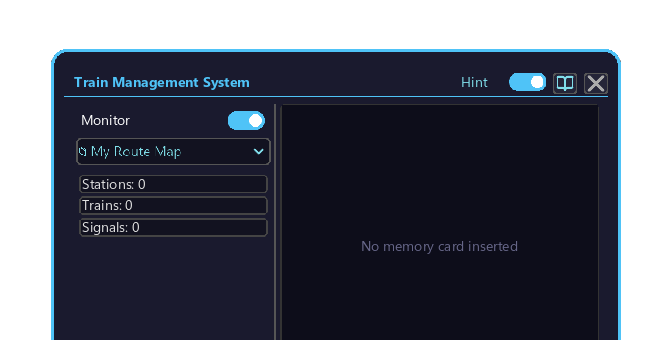
The Monitor Display tab of the Management Computer. Shows a custom layout on linked nearby monitor blocks.
How to open
- Place the Management Computer block and right-click it to open the screen.
- The monitor features are operated from the monitor toggle at the top of this screen and the buttons at the bottom (🎨 Color / ▒ Layout) (see Controls below).
Features
- Custom layout editing (Layout Editor)
- Color customization (Color Settings / Color Picker)
- Monitor linking (Monitor Link Card)
- Batch apply / face-flip / private/public
Controls
| Element | Action | Function |
|---|---|---|
| Monitor toggle | Click to turn ON/OFF (ON = green) | When ON, starts displaying on linked monitors (workflow) |
| 🎨 Color button (bottom) | Click | Opens the Color Settings popup |
| ▒ Layout button (bottom) | Click | Opens the Layout Editor |
| Create line symbols | Select the Ⓜ Line Symbols tab in the top-left dropdown | Create and edit symbols in the Line Symbol Editor |
Monitor linking workflow
- Place the Management Computer.
- Place monitor blocks nearby.
- Hold the Monitor Link Card, right-click a monitor block → right-click the Management Computer to link.
- Open the Management Computer and click the monitor toggle to turn it ON (green) → instant sync to the linked monitors.