
Preset Detail
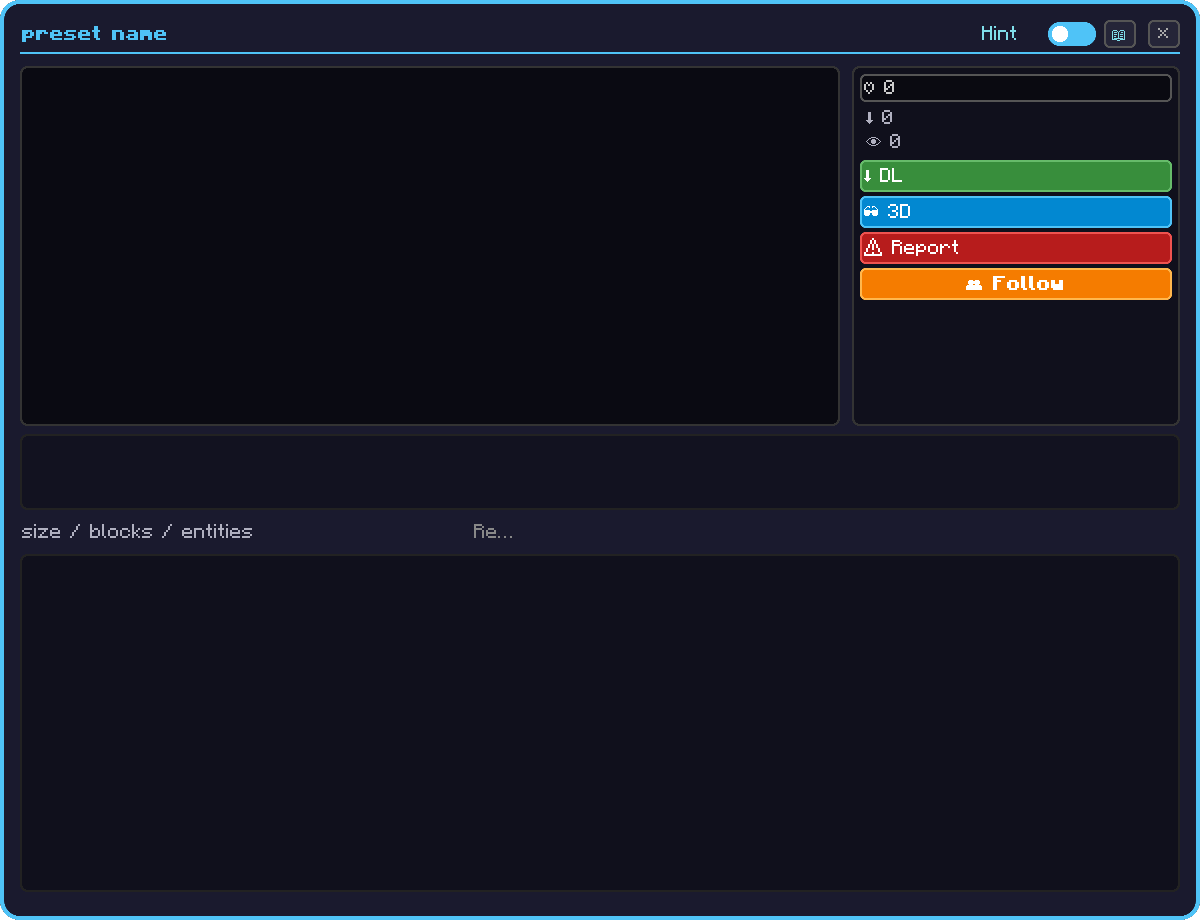
Individual page for a public preset. Provides a 3D preview / images / Markdown description / download.
Opening
- Right-click the Train Preset Tool in GUI mode to open the browse screen (switch modes with Alt + wheel).
- Switch the mode to `Place` (public).
- Left-click a preset tile in the list to open this page.
Button operations
Operate each button with a left-click.
| Button | Operation | Behavior |
|---|---|---|
| ⬇ Download | Left-click | Save the preset to your local storage (see Download below) |
| ♡ / ♥ Like | Left-click | Toggle like ON / OFF |
| 3D | Left-click | Open the 3D preview in a separate window (modal) (see 3D preview controls below) |
| Report | Left-click | Open the report dialog (see Report below) |
| Follow | Left-click | Follow / unfollow the uploader |
| Uploader name | Left-click | Go to that uploader's Profile |
| × / Esc | Click / key | Close the page |
Primary elements
| Element | Function |
|---|---|
| 3D preview | 3D display of the train structure (left drag rotate / right drag pan / wheel zoom) |
| Image gallery | Images attached at upload |
| Markdown description | Creator's detailed explanation (4096 chars) |
| Download button | Download and save locally |
| Like (♥) | Rate the preset |
| Report button | Report with a reason when inappropriate |
| Uploader info | Creator name + follow button |
3D preview controls
Pressing the 3D button opens a separate window (modal) where you can rotate and view the train structure. Inside the window you can do the following.
| Operation | Behavior |
|---|---|
| Left drag | XP/YP axis rotation |
| Right drag | Pan |
| Wheel | Zoom (0.2× – 8×) |
| ESC / background click | Close |
Download
Left-clicking the ⬇ Download button saves it to your local storage. After saving, you can place it from Train Preset Browse > Mine mode.
Report
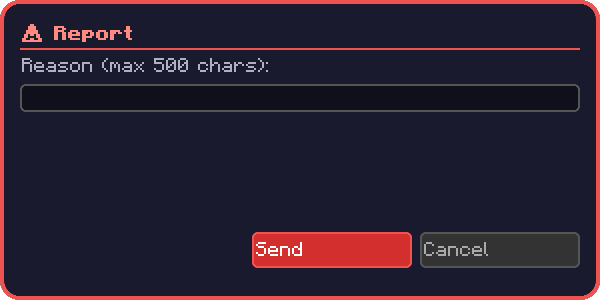
Enter a reason (500 chars) in the report dialog → submit. TSU moderators review and act on it.