
Poster Animation Settings
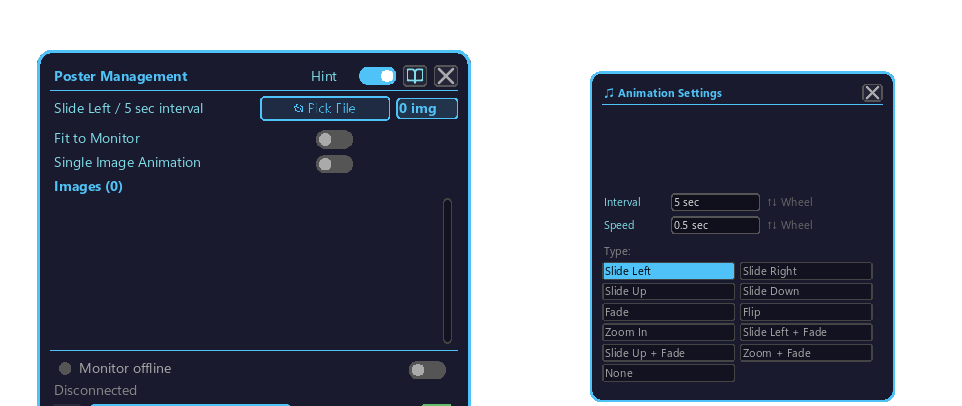
A popup that controls the slide transitions of the Poster Management Block.
Opening
- Right-click the Poster Management Block to open its GUI.
- Click the "♫ Animation" button to make this animation settings popup appear on the right side of the dialog.
- Pressing the "♫ Animation" button again closes it (Esc also closes it).
Operation (where to click / scroll)
- Animation type: Click the type you want to use (such as "Slide Left" or "Fade") from the list to select it (the selection is highlighted).
- Interval / speed values: Hover the cursor over the value and use the mouse wheel to increase or decrease it (the screen also shows an "↑↓ wheel" hint). There are no + / − buttons.
Animation types
| Type | Behavior |
|---|---|
| None | Instant switch (no animation) |
| Slide Left/Right | Horizontal slide-in |
| Slide Up/Down | Vertical slide-in |
| Fade | Fade transition |
| Zoom | Zoom in/out |
| Push Left/Right | Push transition |
Settings
| Item (display name) | Operation | Use |
|---|---|---|
| Animation type | Click the list | Transition effect (select from the list above) |
| Interval | Cursor over value → wheel | Display time per slide |
| Duration | Cursor over value → wheel | The transition animation's own duration |
Preview
You can check in real time in the preview area within the popup. If no images are registered, a default test pattern is shown.