
Preset Upload
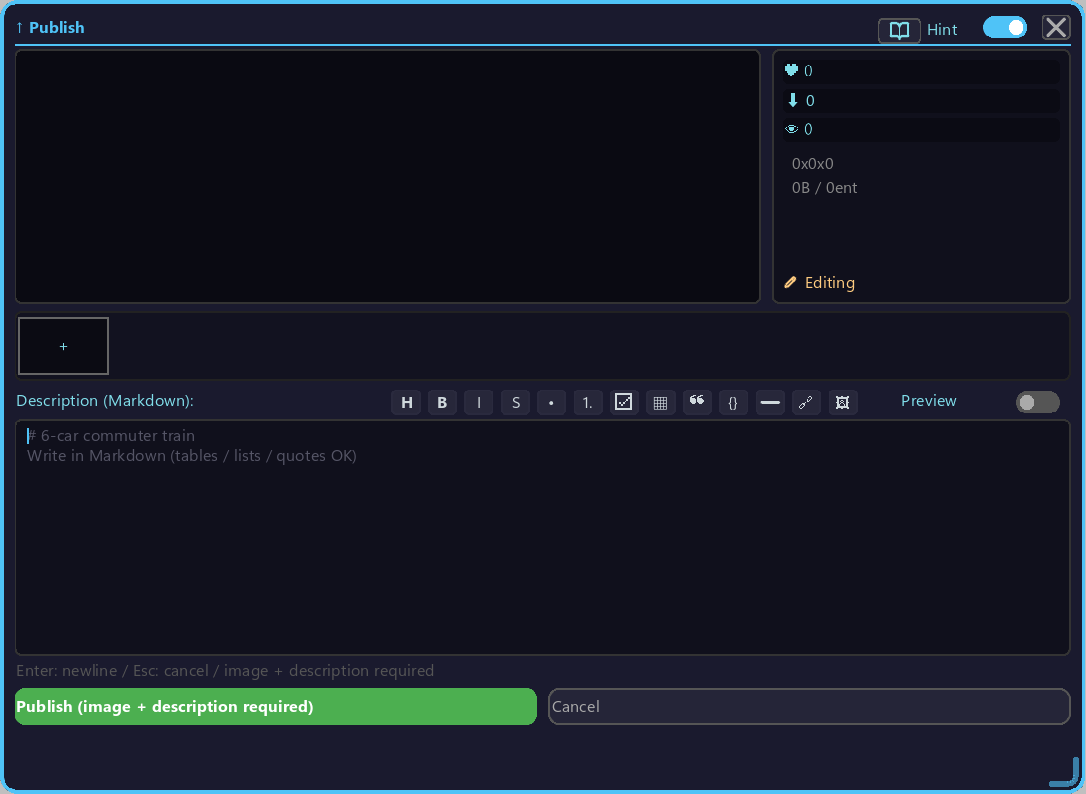
Dialog for requesting to publish your own preset to Preset Place.
Opening
First, you must save the train you want to publish locally as a train preset.
- Right-click the Train Preset Tool in GUI mode to open the browse screen (switch modes with Alt + wheel).
- Set the mode to `Mine` (yours).
- Left-click the upload icon on the tile of the preset you want to publish to open this dialog.
Upload items
| Item | Summary |
|---|---|
| Images (up to 5) | PNG / JPG for preview. Add with the + button |
| Markdown description | 4096 chars. Supports newline / paste / copy / Ctrl+Enter |
| Publish button | Submits the publish request after input validation |
Description editor
Multi-line Markdown editing. Use the Preview toggle to check the rendered result:
- Standard Markdown such as headings / lists / links / emphasis / quotes
- Ctrl + Enter executes
Publish
Publish flow
Publishis enabled with 1+ image and 1+ char of description- Publish confirm dialog
- The client sends it to the Preset Place server
- Goes live after review (= automatic or moderator)
Authentication
Publishing requires Microsoft account authentication. Check auth status / re-authenticate in the Creator Center.